The Clio 3, depending on its trim and model year, may or may not come with an integrated Bluetooth module in the original radio. Before any software manipulation, it is essential to identify the type of radio installed: an Update List without Bluetooth will never offer a pairing menu, regardless of the procedure followed. This distinction conditions the entire process.
Identify the type of radio and Bluetooth compatibility on Clio 3
Not all Clio 3s come with an original Bluetooth module. Entry-level versions (Expression, Authentique) are often delivered with a basic radio lacking this function. Only higher trims or specific options (Carminat, some Update Lists with integrated telephony) include Bluetooth natively.
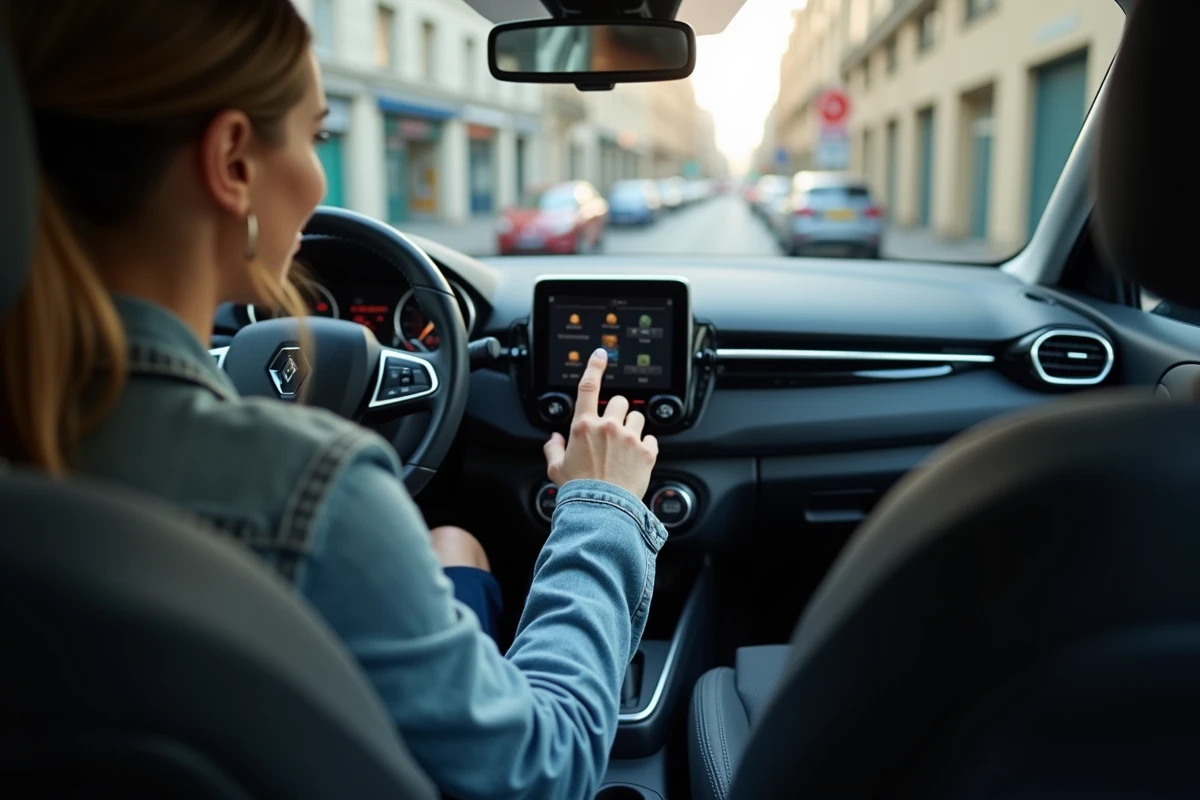
To check, we recommend observing the radio display at startup. If a phone icon or a “TEL” entry appears in the menu, the module is present. In the absence of this indication, no software activation will be possible.
Configuring Bluetooth on Renault Clio 3 therefore requires starting from this hardware verification; otherwise, the pairing steps described all over the web will remain ineffective.
Activate and pair a smartphone with the original Bluetooth radio
On a compatible radio, the activation procedure involves the physical “TEL” or “PHONE” button located on the front panel. A short press opens the telephony menu. The radio then switches to discovery mode for a few minutes.
Pairing steps from the radio
- Press the TEL button on the radio to initiate pairing mode. The screen displays “Searching” or “Pairing in progress.”
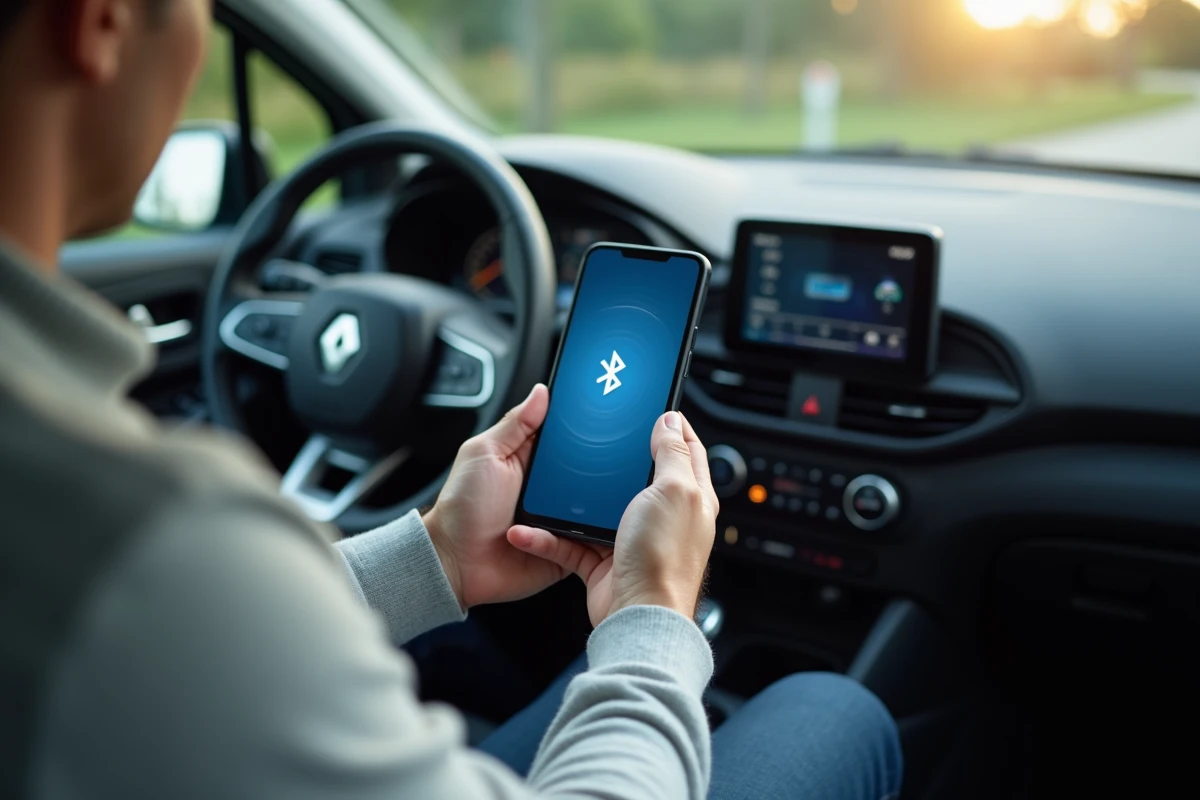
- On the smartphone (Android or iPhone), open the Bluetooth settings and start a device search. The radio’s name appears, often in the form of “RENAULT” or “RN” followed by an identifier.
- Select the Renault device on the phone, then confirm the PIN code displayed on the radio screen (usually 0000 or 1234).
- Validate the pairing on both sides. The connection will be automatic on subsequent startups.
If the radio requests a PIN code but the smartphone does not display it, check that the phone’s Bluetooth is set to “visible” and not hidden. On some recent Android devices, this option is buried in the advanced connectivity settings.
Common issues when connecting
A failed pairing often results from a saturated device memory. The Clio 3’s radio can only store a limited number of paired phones. Deleting old registered devices via the TEL menu frees up space and resolves most connection failures.
Another technical point: recent Bluetooth protocols (5.0 and above) remain backward compatible, but some modern smartphones prioritize BLE (Bluetooth Low Energy), which is not managed by the original radio. Forcing “classic Bluetooth” mode in the phone’s developer settings may resolve the situation.
Installation solutions for a Clio 3 without integrated Bluetooth
When the original radio does not support Bluetooth, there are two main options. The addition of a dedicated Bluetooth box is the most reliable solution to keep the original radio while gaining wireless connectivity.
Bluetooth box on auxiliary input or CD changer
These boxes connect to the rear auxiliary input of the radio (if present) or to the CD changer connector. The audio signal is then transmitted wired to the radio, while the connection with the smartphone remains wireless.
The audio quality obtained significantly exceeds that of an FM transmitter, which suffers from noise and interference on urban frequencies. A box connected via auxiliary or through the CD changer bus offers sound comparable to a direct jack cable.
- Box on auxiliary input: simple installation, compatible with most Clio 3 radios. Requires checking for the presence of the AUX input on the front or back of the unit.
- Box on CD changer connector: connects in place of the changer (rarely used). Direct power from the harness, no additional visible cable.
- FM transmitter: last resort solution, poor audio quality, sensitive to interference. To be avoided if an auxiliary input is available.
Complete replacement of the radio
Some owners opt for an aftermarket radio with Bluetooth, even compatible with CarPlay or Android Auto. This approach transforms the vehicle’s ergonomics but requires checking the mounting format (1-DIN on most Clio 3s) and compatibility with the original wiring harness.
An ISO harness adapter is almost always necessary to connect a third-party radio without cutting the original wires. We recommend keeping the Renault connector intact to facilitate a potential return to the factory configuration.
Managing calls and audio streaming via Bluetooth on Clio 3
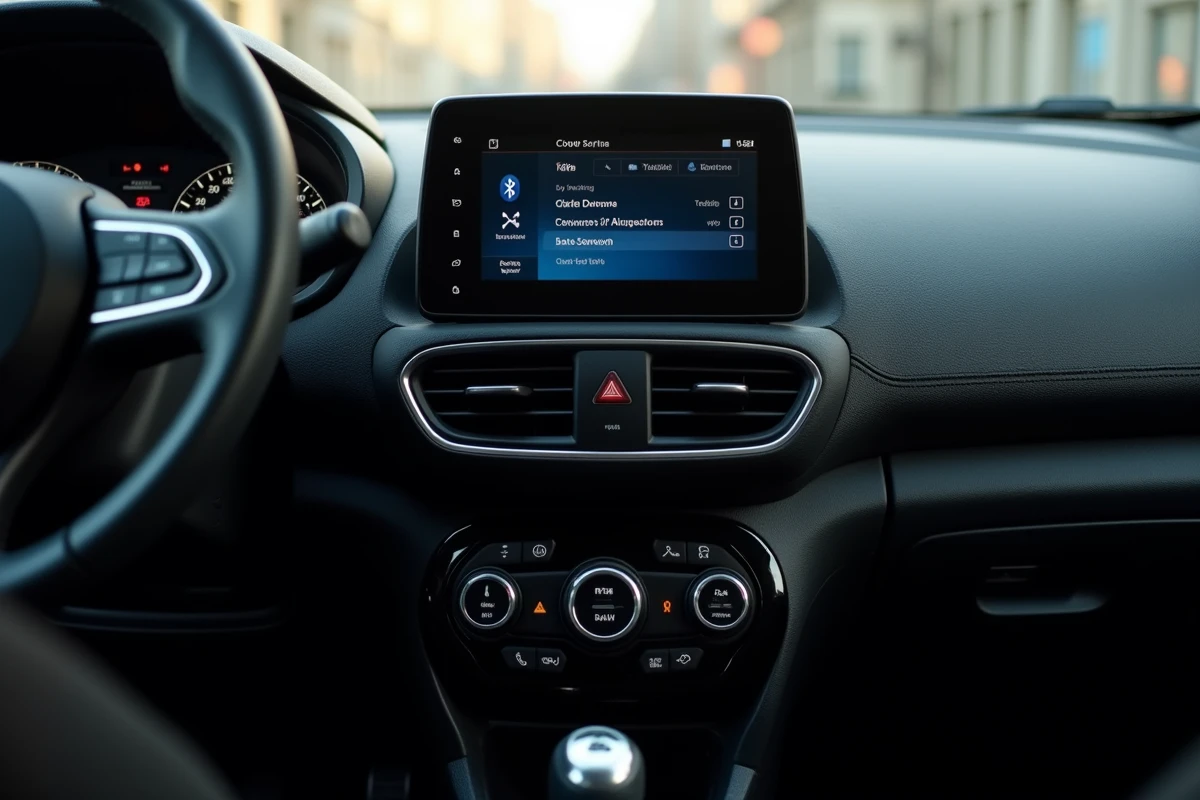
Once the connection is established, the original radio manages phone calls via the microphone integrated into the ceiling or the rearview mirror. The call volume is adjusted independently of the media volume, directly from the steering wheel controls if the vehicle is equipped.
Music streaming (A2DP profile) is not always supported by the original Bluetooth radios of the Clio 3. Many are limited to the HFP profile (hands-free phone). In this case, music will only play through the auxiliary input or via an external box.
Checking the Bluetooth profile supported by the radio avoids any disappointment after pairing: HFP for calls only, A2DP for audio streaming. This information is rarely found in Renault documentation but can be discovered by querying the technical menu of the radio (simultaneously holding down two buttons at startup, varying by the exact model of the unit).
The Clio 3 remains a vehicle whose onboard electronics precede the era of full connectivity. Adapting its Bluetooth connectivity involves properly identifying the installed hardware, then choosing the most suitable solution between native pairing, dedicated box, or complete replacement of the unit.